


Top Linux Command
File Management in Linux
In Linux, most of the operations are performed on files. And to handle these files Linux has directories also known as folders which are maintained in a tree-like structure. Though, these directories are also a type of file themselves. Linux has 3 types of files:
- Regular Files: It is the common file type in Linux. it includes files like – text files, images, binary files, etc. Such files can be created using the touch command. They consist of the majority of files in the Linux/UNIX system. The regular file contains ASCII or Human Readable text, executable program binaries, program data and much more.
- Directories: Windows call these directories as folders. These are the files that store the list of file names and the related information. The root directory(/) is the base of the system, /home/ is the default location for user’s home directories, /bin for Essential User Binaries, /boot – Static Boot Files, etc. We could create new directories with mkdir command.
- Special Files: Represents a real physical device such as a printer which is used for IO operations. Device or special files are used for device Input/Output(I/O) on UNIX and Linux systems. You can see them in a file system like an ordinary directory or file.
In Unix systems, there are two types of special files for each device, i.e. character special files and block special files. For more details, read the article Unix file system.
1. Files Listing
To perform Files listings or to list files and directories ls command is used
$ls

All your files and directories in the current directory would be listed and each type of file would be displayed with a different color. Like in the output directories are displayed with dark blue color.
$ls -l

It returns the detailed listing of the files and directories in the current directory. The command gives os the owner of the file and even which file could be managed by which user or group and which user/group has the right to access or execute which file.
2. Creating Files
touch command can be used to create a new file. It will create and open a new blank file if the file with a filename does not exist. And in case the file already exists then the file will not be affected.
$touch filename

3. Displaying File Contents
cat command can be used to display the contents of a file. This command will display the contents of the ‘filename’ file. And if the output is very large then we could use more or less to fit the output on the terminal screen otherwise the content of the whole file is displayed at once.
$cat filename

4. Copying a File
cp command could be used to create the copy of a file. It will create the new file in destination with the same name and content as that of the file ‘filename’.
$cp source/filename destination/

5. Moving a File
mv command could be used to move a file from source to destination. It will remove the file filename from the source folder and would be creating a file with the same name and content in the destination folder.
$mv source/filename destination/

6. Renaming a File
mv command could be used to rename a file. It will rename the filename to new_filename or in other words, it will remove the filename file and would be creating a new file with the new_filename with the same content and name as that of the filename file.
$mv filename new_filename

7. Deleting a File
rm command could be used to delete a file. It will remove the filename file from the directory.
$rm filename

Shift command in Linux with examples
Shift is a builtin command in bash which after getting executed, shifts/move the command line arguments to one position left. The first argument is lost after using shift command. This command takes only one integer as an argument. This command is useful when you want to get rid of the command line arguments which are not needed after parsing them.
Syntax:
shift n
Here, n is the number of positions by which you want to shift command-line arguments to the left if you do not specify, the default value of n is assumed to be 1 i.e shift works the same as shift 1.
Example: Let’s create a shell script file named as sampleshift.sh as follows. The total number of command-line arguments is represented by $#. Use the following command to create the desired shell script file
vi sampleshift.sh
Now paste the following code:
#!/bin/bash

# total number of command-line arguments
echo "Total arguments passed are: $#"

# $* is used to show the command line arguments
echo "The arguments are: $*"

echo "The First Argument is: $1"
shift 2

echo "The First Argument After Shift 2 is: $1"
shift

echo "The First Argument After Shift is: $1"
Now to save the file press ESC and then type “:x” without quotes and hit Enter. Now to execute the file, use the following command on Linux terminal
sh sampleshift.sh
But here we have to pass command-line arguments so we can use the following command
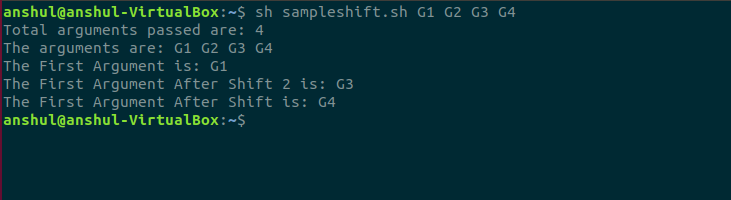
sh sampleshift.sh G1 G2 G3 G4
Here, we are passing 4 command-line arguments named G1, G2, G3, and G4. Below is the screenshot of the output of using shift command:
User Management in Linux
A user is an entity, in a Linux operating system, that can manipulate files and perform several other operations. Each user is assigned an ID that is unique for each user in the operating system. In this post, we will learn about users and commands which are used to get information about the users. After installation of the operating system, the ID 0 is assigned to the root user and the IDs 1 to 999 (both inclusive) are assigned to the system users and hence the ids for local user begins from 1000 onwards.
In a single directory, we can create 60,000 users. Now we will discuss the important commands to manage users in Linux.
In a single directory, we can create 60,000 users. Now we will discuss the important commands to manage users in Linux.
1. To list out all the users in Linux, use the awk command with -F option. Here, we are accessing a file and printing only first colum with the help of print $1 and awk.
awk -F':' '{ print $1}' /etc/passwd

2. Using id command, you can get the ID of any username. Every user has an id assigned to it and the user is identified with the help of this id. By default, this id is also the group id of the user.
id username
Example: id test

3. The command to add a user. useradd command adds a new user to the directory. The user is given the ID automatically depending on which category it falls in. The username of the user will be as provided by us in the command.
sudo useradd username
Example: sudo useradd geeks

4. Using passwd command to assign a password to a user. After using this command we have to enter the new password for the user and then the password gets updated to the new password.
passwd username
Example: passwd geeks

5. Accessing a user configuration file.
cat /etc/passwd
This commands prints the data of the configuration file. This file contains information about the user in the format.
username : x : user id : user group id : : /home/username : /bin/bash

Now we will go through the commands to modify information.
6. The command to change the user ID for a user.
usermod -u new_id username
This command can change the user ID of a user. The user with the given username will be assigned with the new ID given in the command and the old ID will be removed.
Example: sudo usermod -u 1982 test

7. Command to Modify the group ID of a user.
usermod -g new_group_id username
This command can change the group ID of a user and hence it can even be used to move a user to an already existing group. It will change the group ID of the user whose username is given and sets the group ID as the given new_group_id.
Example: sudo usermod -g 1005 test

8. You can change the user login name using usermod command. The below command is used to change the login name of the user. The old login name of the user is changed to the new login name provided.
sudo usermod -l new_login_name old_login_name
Example: sudo usermod -c John_Wick John_Doe

9. The command to change the home directory. The below command change the home directory of the user whose username is given and sets the new home directory as the directory whose path is provided.
usermod -d new_home_directory_path username
Example: usermod -d new_home_directory test

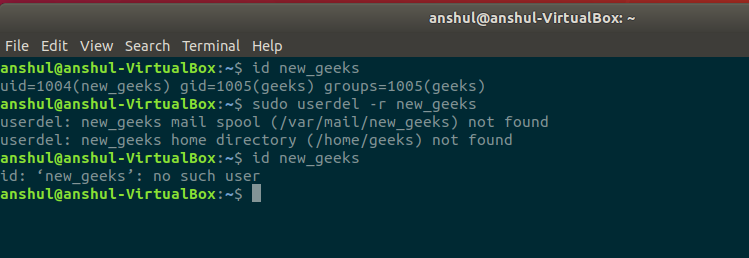
10. You can also delete a user name. The below command deletes the user whose username is provided. Make sure that the user is not part of a group. If the user is part of a group then it will not be deleted directly, hence we will have to first remove him from the group and then we can delete him.
userdel -r username
Example: sudo userdel -r new_geeks

0 Comments